
You open Google Search Console. Googlebot visited the URL. The server returned 200 OK. The page works perfectly in your browser.
Yet Google still does not index it, important content is missing, or another URL appears instead. That sounds contradictory, but a successful Google crawl only tells you part of the story.
The part many SEO checks miss: A successful Google crawl only proves Google reached the URL. Google may still need to render the page, process its indexing signals, choose a canonical URL, and decide whether the page belongs in the index.
So before you rewrite the content, add backlinks, submit the URL again, or blame crawl budget, find out which stage actually failed.
What Does a Google Crawl Prove?
A Google crawl happens when Google’s crawling systems request a URL and retrieve its response. Googlebot can process the initial HTML, discover links, and collect resources the page needs.
Rendering means Google processes the page much like a browser so JavaScript can load, change, or create content. Google can then evaluate the resulting page for indexing.
Google documents JavaScript processing around crawling, rendering, and indexing. You can see the process in Google’s JavaScript SEO documentation.
A Real Page From Discovery to Indexing
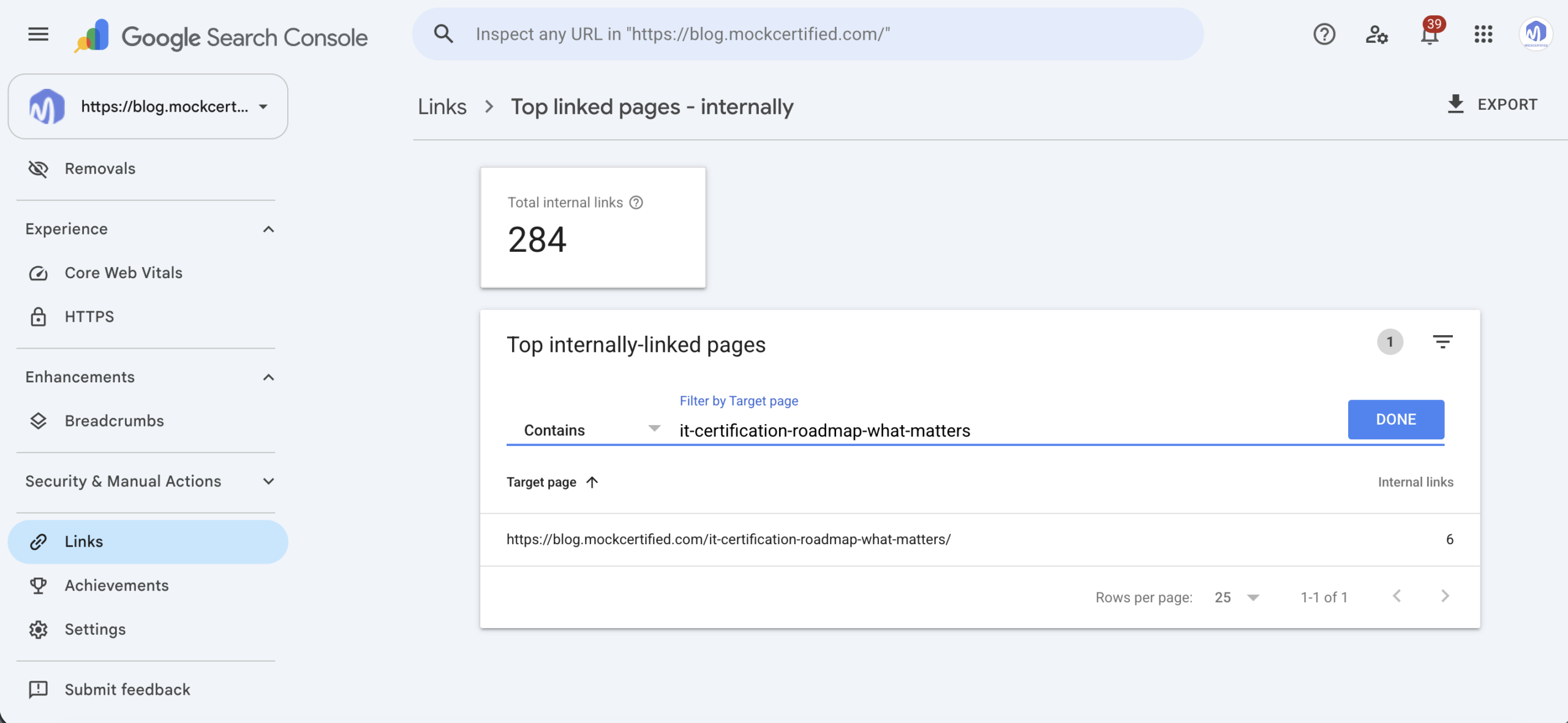
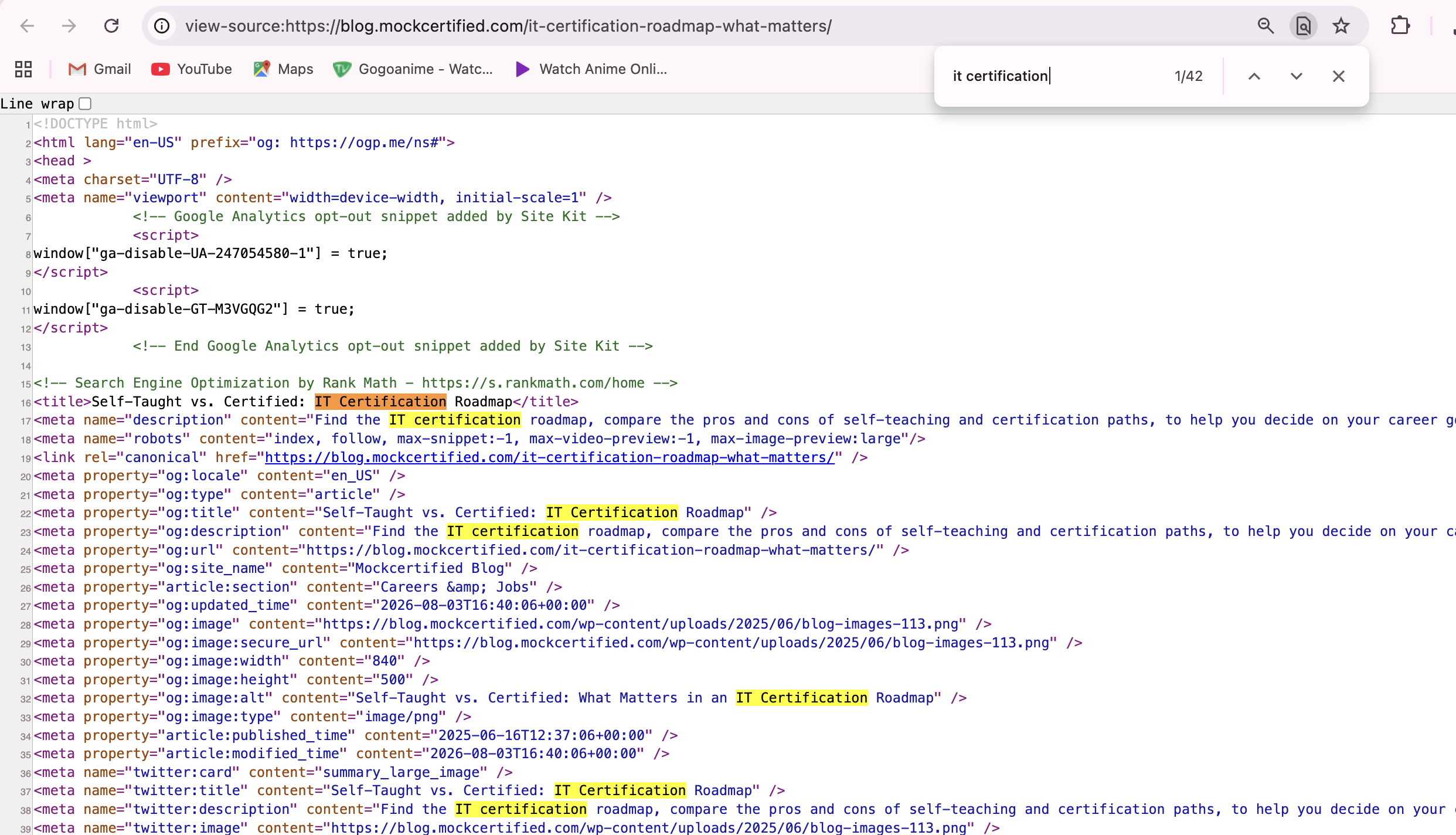
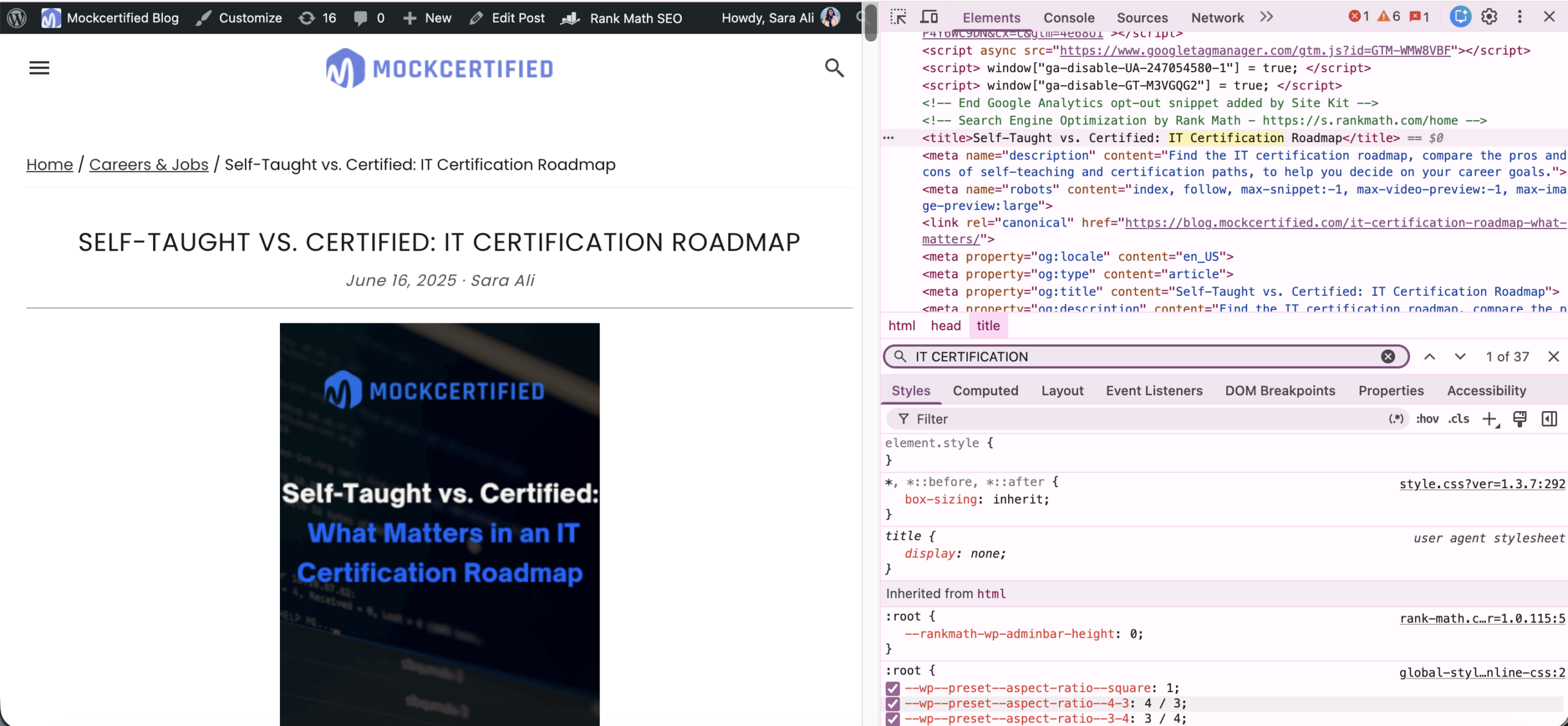
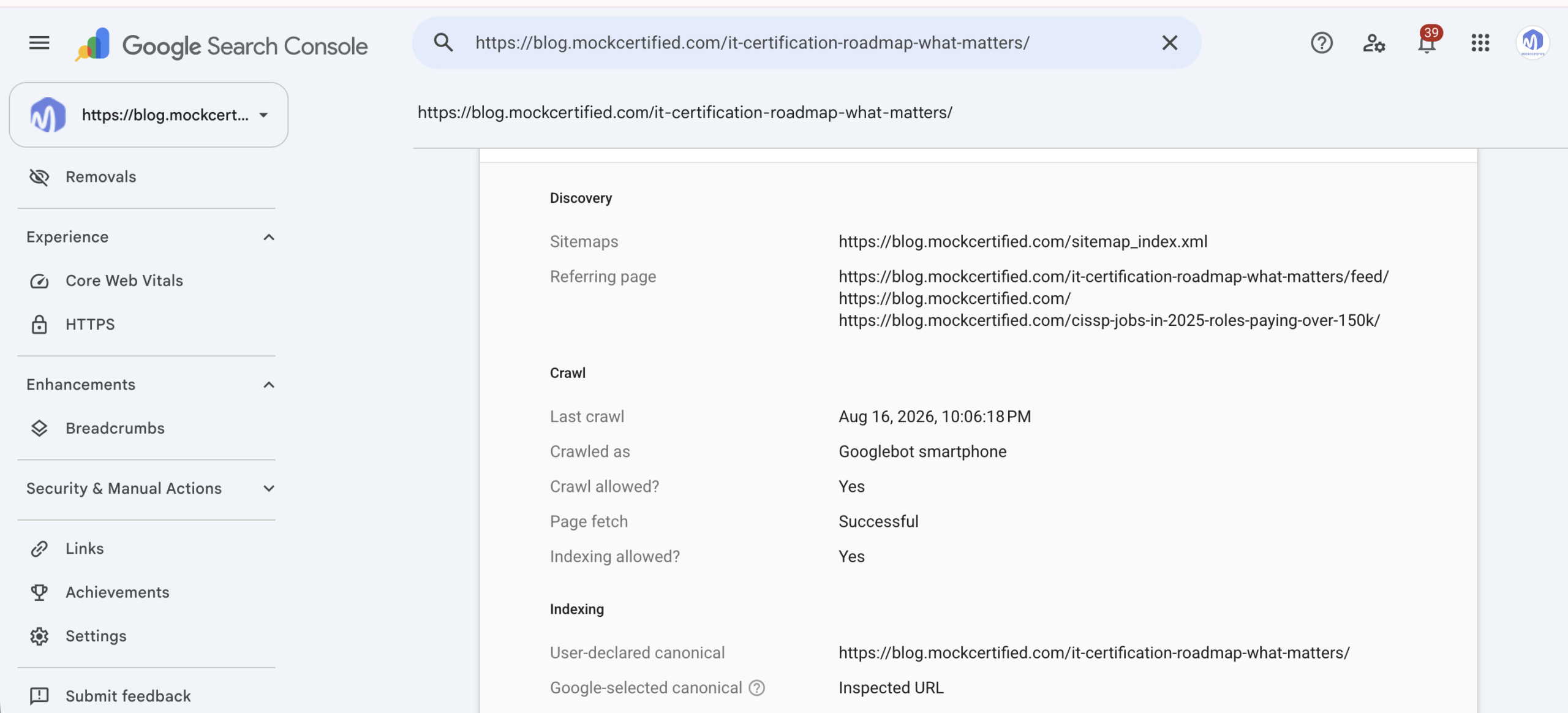
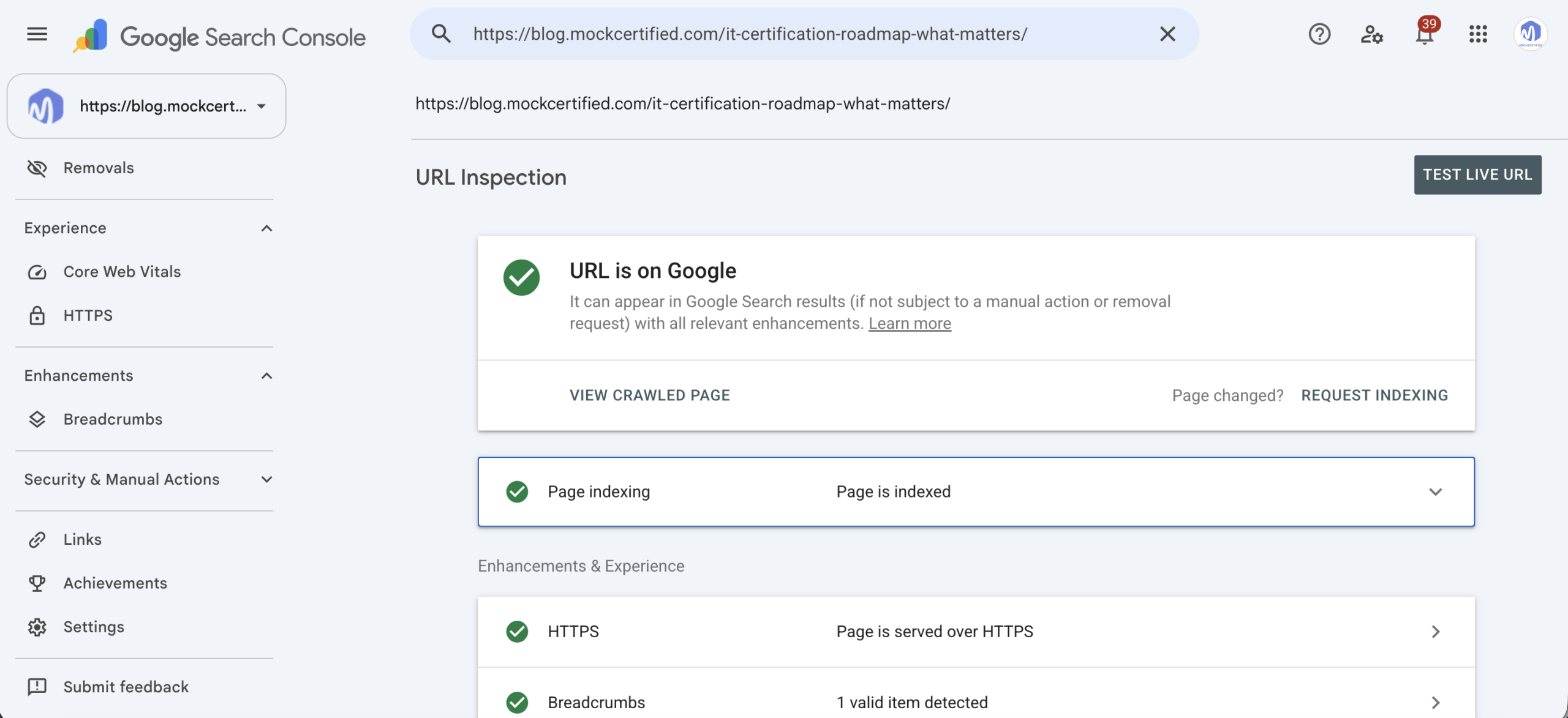
Here is what that process looks like on one real MockCertified article. The same URL appears at each stage so you can see how discovery, crawling, rendering and indexing connect.
Find Where It Broke
Most Google crawl problems become easier once you stop treating “not indexed” as one giant problem. Start with the stage that failed and work forward from there.
- Rewrite the entire page.
- Buy backlinks.
- Submit the URL repeatedly.
- Add more schema.
- Blame crawl budget.
First identify the stage that failed.
The 6-Step Google Crawl Check
Start with Search Console, View Source and DevTools. These six checks will usually tell you which part of the process needs attention.
Step 1: Check Whether Google Knows the URL
Open Google Search Console → URL Inspection and paste the exact page URL. Review the crawl information Google shows for that URL.
Step 2: Check Whether Google Could Fetch It
Look at the page-fetch information in URL Inspection. A normal live page will usually return a successful response such as 200.
If the fetch failed, stop there. You have an access problem before you have an indexing problem.
The server or another layer refused access.
The server limited the request rate.
The application or server failed.
Step 3: See What the Server Sends First
Open the page in your browser, right-click and choose View Page Source. Search for the H1, a product name, a service name or a unique sentence from the main content.
Ctrl + F on Windows or Cmd + F on Mac.The important information exists in the initial HTML.
That does not automatically mean the page is broken, but rendering now matters.
Step 4: Check What JavaScript Adds
Right-click the normal page, choose Inspect, open the Elements tab, and search for the same content again.
Now compare what existed in the original HTML with what appears after the page has rendered.
Initial HTML<h1>Men's Running Shoes</h1>
<div id="products"></div>Initially: The heading exists, but the product content does not.
After JavaScript<h1>Men's Running Shoes</h1>
<div id="products">
<article>Trail Runner Pro - $89</article>
<article>Daily Runner - $74</article>
</div>After rendering: JavaScript added the products.
Try One Extra Test
Temporarily disable JavaScript and reload the page. If the H1, main text, products, navigation or internal links disappear, you now know how much of the page depends on JavaScript.
For a closer look at how JavaScript turns returned data into page content, see JavaScript mapping and data manipulation.
Step 5: Check Whether the Page Is Allowed to Be Indexed
Indexability means whether a page is allowed and eligible to enter Google’s index. A successful crawl cannot override a directive that tells Google not to index the page.
Check for:
- A
noindexmeta robots directive. - An
X-Robots-Tag: noindexHTTP header. - An unexpected redirect.
- A canonical pointing to another URL.
- A missing page incorrectly returning
200 OK.
noindex directive controls indexing. They solve different problems.
Step 6: Compare the Canonical
A canonical tells Google which URL you consider the main version when similar or duplicate URLs exist.
Search Console can show the user-declared canonical and Google’s selected canonical when that information is available.
What “Crawled, Currently Not Indexed” Means
This Search Console status does not automatically mean Google failed to render the page. It means Google fetched the URL but has not currently included it in the index.
Google may see another URL as the stronger or preferred version.
The page may look thin, repetitive or too similar to existing pages.
Soft 404 behavior, conflicting canonicals or other signals may reduce confidence.
What JavaScript Adds After the Crawl
JavaScript is not inherently bad for SEO. React, Angular, Vue, Next.js and similar frameworks can all power searchable websites.
The risk starts when the page’s core meaning depends on several things working perfectly after the initial response.
- Product Name.
- $89 Price.
- Product Description.
- Related-Product Links.
<div id="product"></div>JavaScript still needs to build the useful content.
A simple application may then request data from an API:
/api/products/blue-running-shoeThe API might return:
{
  "name": "Blue Running Shoe",
  "price": "$89",
  "description": "Lightweight running shoe for everyday training."
}
JavaScript takes that data and builds the visible page. The more essential content that depends on this chain, the more important it becomes to test the rendered result instead of assuming the crawl tells the whole story.
Can API Errors Stop Google?
They can stop important content from appearing when the page depends on an API response. Your own browser may work while a resource request fails intermittently or under different conditions.
Check CDN rules, authentication, firewall settings and bot protection.
Check rate limits and API throttling.
Check application errors, uptime and server logs.
If one failed request removes the main product description, price, location information or navigation, give that exact failed request to the developer.
What Should Stay Reliable?
You do not need every interactive feature in the initial HTML. Prioritize the elements that tell Google what the page is and how it should be treated.
| Title and H1 | Keep these reliable because they help establish the page topic. |
| Main Product or Service Content | Prioritize the information Google needs to understand the page. |
| Primary Internal Links | Expose clear crawlable URLs. |
| Canonical | Keep the preferred URL consistent. |
| Index Directives | Do not make indexability depend on JavaScript correcting the page later. |
| Chat and Non-Critical Personalization | These can usually load after the core content. |
Can Google Crawl Your Links?
Important navigation should expose real URLs. Google should not need a click event or custom JavaScript action just to discover an important category or landing page.
Clear Crawlable Link<a href="/running-shoes/">Running Shoes</a><span onclick="loadCategory('running-shoes')">
Running Shoes
</span>Watch Canonicals and Noindex
JavaScript can change SEO signals after the initial HTML loads. That becomes risky when Google receives one instruction first and a different instruction after rendering.
Canonical Changes
Initial HTML<link rel="canonical"
href="https://example.com/product-a"><link rel="canonical"
href="https://example.com/product-b">Now the page has presented two different preferred URLs. Google recommends keeping canonical signals consistent. You can review its canonicalization guidance for supported methods.
Noindex Changes
A risky pattern starts with:
<meta name="robots" content="noindex">and then relies on JavaScript to remove that directive later.
The Soft 404 Trap
A single-page application can display the right message while returning the wrong HTTP status. That gives users and search engines two different signals about what actually happened.
Someone opens:
/products/product-that-does-not-existThe server returns:
HTTP 200 OKThen JavaScript displays:
Product not found.The visible page says the product does not exist. The HTTP response says the request succeeded.
| Valid Page | 200 usually indicates the requested page exists. |
| Permanent Redirect | 301 or 308 sends users and crawlers elsewhere. |
| Missing Page | 404 indicates the requested resource does not exist. |
| Permanently Removed | 410 indicates the resource intentionally no longer exists. |
Blocked Resources Can Break Rendering
Suppose robots.txt blocks a directory containing JavaScript the page needs to create its main content. Google may fetch the URL successfully while still missing a resource required to build the finished page.
User-agent: *
Disallow: /assets/
But the page needs /assets/app.js to build its main content.
Check critical JavaScript, CSS, API endpoints and other resources required to construct the page. Google’s troubleshooting documentation covers these cases in Fix Search-related JavaScript problems.
A Crawl Can Succeed While Schema Fails
Structured data is separate from crawl success. A page can return 200 OK and load normally while its JSON-LD contains invalid syntax.
JSON is a general data format. JSON-LD is commonly used to describe structured entities and properties for search engines and other machines.
This Product markup is broken because a comma is missing:
{
  "@context": "https://schema.org",
  "@type": "Product"
  "name": "Running Shoes"
}Google also documents how to generate structured data with JavaScript.
How Your Page Gets Built
Two common rendering approaches explain why some pages depend more heavily on JavaScript than others.
CSR means Client-Side Rendering. The server can send a relatively basic HTML shell, then JavaScript runs in the browser and builds more of the page. SSR means Server-Side Rendering. The server builds more of the meaningful HTML before sending the page to the browser.
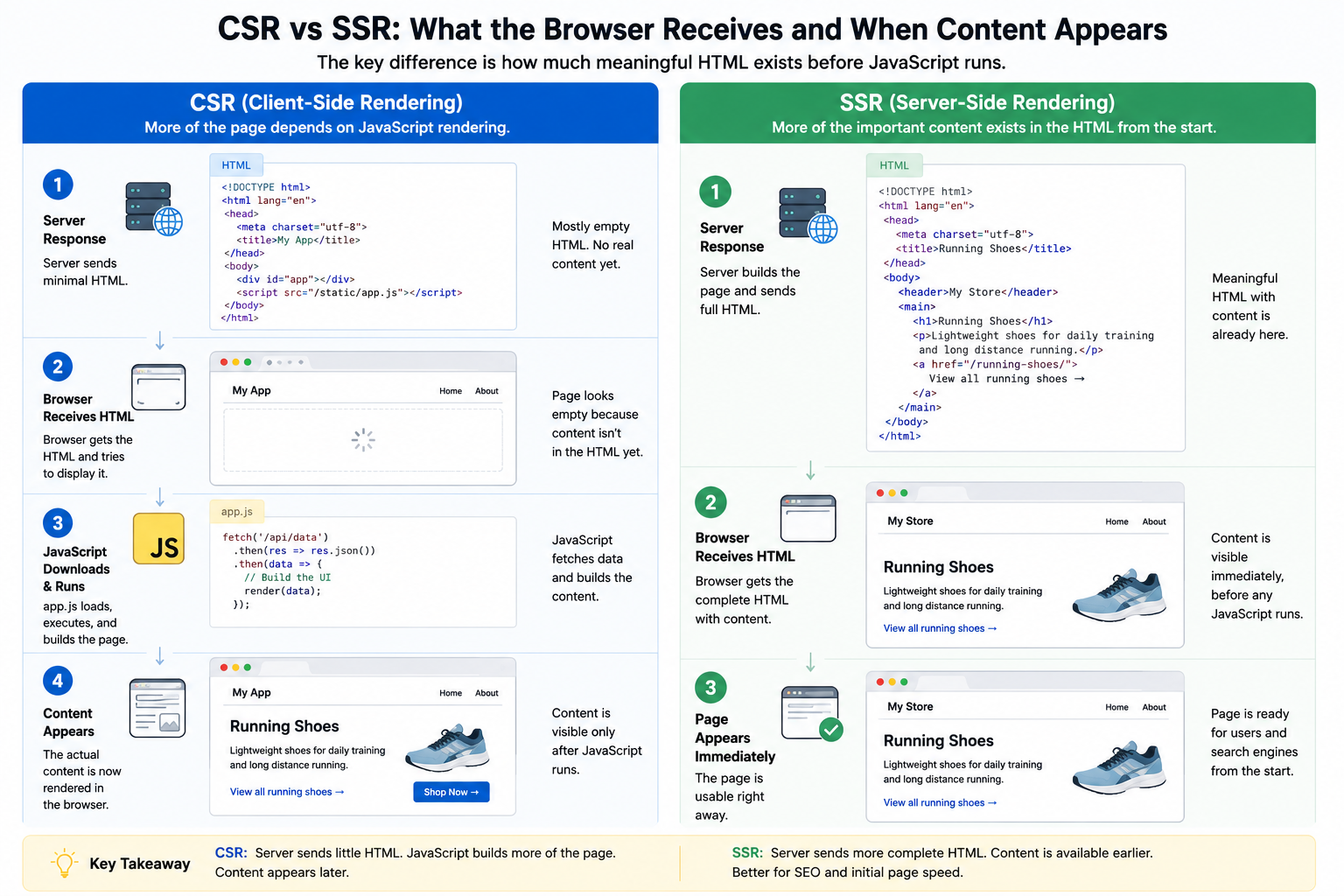
For a broader look at where these technologies fit, see front-end and back-end development.
Does Every Page Need SSR?
No. The goal is not to eliminate JavaScript. The better goal is to keep critical content, links and indexing signals reliable regardless of how interactive the page becomes.
When a Page Does Too Much
Rendering problems do not always come from one dramatic failure. Sometimes too many dependencies have to finish before the useful content appears.
JavaScript bundles, API calls and content rendering.
Analytics, advertising, chat widgets, A/B testing and personalization.
Large JSON responses, unnecessary fields and excessive requests.
A product page may need a name, price, availability and description. It probably does not need years of inventory history or hundreds of unused database fields before the main content appears.
Turn the SEO Problem Into a Fixable Ticket
“Google isn’t indexing this page” does not tell a developer where to look. Give them the failure you actually found so they can reproduce it and investigate the right layer.
| Instead of: Google doesn’t like the page. | Say: The page fetch succeeds, but the product description only appears after an API request that intermittently returns 429. |
| Instead of: The navigation is bad for SEO. | Say: These category controls use click events but do not expose crawlable href URLs. |
| Instead of: Google picked the wrong page. | Say: We declare URL A as canonical, but Search Console shows Google selected URL B. |
| Instead of: The 404 is broken. | Say: Missing product URLs display “not found” but still return HTTP 200. |
| Instead of: Schema is not working. | Say: The live Product JSON-LD fails validation on this template. |
Google Crawl Budget: Use It Correctly
Google crawl budget is real, but it is not the answer to every indexing problem. If one page on a normal website refuses to index, crawl budget probably should not be your first diagnosis.
Google’s guidance focuses advanced crawl-budget management mainly on very large or rapidly changing sites with substantial URL inventories.
Start with access, rendering, indexability and content quality.
Millions of products, filters, parameter URLs and frequently changing pages can make crawl efficiency important.
See Google’s crawl-budget documentation for the current criteria and recommendations.
Index Bloat Makes Google Work Harder
Before asking Google to crawl more URLs, ask why the site exposes so many URLs in the first place. A bloated URL inventory can make crawling, indexing and troubleshooting harder than they need to be.
An ecommerce store has 20,000 actual products, but filters, parameters, old pages and generated URLs create 1.4 million discoverable URLs.
The better question is not “How do we increase crawl budget?” It is “Why are we presenting Google with 1.4 million URLs?”
Faceted navigation combinations, internal search pages and parameter URLs.
Tracking versions, duplicate filters and multiple URL formats for similar content.
Obsolete pages, staging URLs, thin archives and empty generated categories.
Google Crawl Myths
A crawl confirms Google reached the URL. Rendering, canonicalization and indexing still come afterward.
Google can process JavaScript. The issue is whether critical content and resources remain accessible and reliable.
Do not assume this. Compare the initial HTML, rendered page and Search Console information.
Advanced crawl-budget management matters much more on very large or rapidly changing websites.
A page can return 200 while acting as a soft 404, missing JavaScript content or sending conflicting SEO signals.
You still need to check status codes, canonicalization, index directives, structured data and indexing.
Check These 5 Things First
Check URL Inspection and the page response.
Compare View Source with the rendered page.
Check noindex, redirects and soft 404 behavior.
Compare your preferred URL with Google’s selected version.
Check duplication, distinct value and usefulness.
Before You Close the Issue
- Google can fetch the URL.
- Important content renders correctly.
- The page is allowed to be indexed.
- Canonical signals agree.
- HTTP status codes are correct.
- Critical resources load successfully.
- The live URL has been retested after the fix.
When Google crawls a page but the page still does not appear, diagnose the pipeline in order:
Fetch → Render → Indexability → Canonical → Indexing → Ranking.
If rendering is broken, do not start with rankings. If canonicalization is wrong, do not keep rewriting copy. Find the failed stage, fix that stage, and retest the live URL.
Google Crawl FAQ
How Do I Check When Google Last Crawled a Page?
Open Google Search Console and use URL Inspection on the exact URL. Review the crawl information Google provides for that page, including the last crawl information when available.
Why Did Google Crawl My Page but Not Index It?
A successful crawl only confirms Google fetched the URL. Check rendering, noindex directives, canonical selection, soft 404 behavior, duplication and whether the page provides enough distinct value to index.
Can Google Process JavaScript Pages?
Yes. Google can fetch JavaScript resources and render JavaScript-powered pages. Problems arise when critical scripts, APIs or resources fail or when important content depends on fragile execution.
Can Google Access APIs Used to Render a Page?
Google’s rendering process may need resources that help build the page. If a critical API is blocked, rate-limited or failing, the rendered content can become incomplete. A raw JSON API response should not be treated as automatically equivalent to indexed page content.
How Do I Make Google Crawl a Page?
Make the URL accessible, link to it internally, include it in an appropriate XML sitemap and avoid accidentally blocking Googlebot. Search Console’s URL Inspection tool can also be used to request indexing for eligible URLs.
Does Indexing Guarantee Rankings?
No. Indexing makes the page eligible to appear in Search. Ranking still depends on relevance, usefulness, intent, authority, competition and other signals.



