
You open your WordPress dashboard and see an administrator account you never created. Your homepage now shows casino links, betting terms, foreign-language text, or strange characters. You move the site to a clean server, import the old database, and the spam returns.
That is exactly what happened to our Mockcertified blog. The visible page was only part of the problem. The malicious content had also reached the WordPress database, including the homepage and many saved revisions.
This article focuses only on the recovery steps we followed when the same problem kept coming back: secure access, preserve evidence, back up the environment, find the infected records in MariaDB, restore a verified clean revision, and check the other database locations where the spam may remain.
Quick Takeaway
- Check every administrator and revoke unknown application passwords first.
- Do not click spam links or delete evidence before recording it.
- Create a server, file, and database backup before cleanup.
- Use MariaDB to find the infected page and revisions.
- Restore only a revision you have manually verified.
- Check metadata, options, comments, files, and scheduled tasks before you treat the site as clean.
First-Hour Dos and Don’ts
| Do | Don’t |
|---|---|
| Record suspicious access Capture usernames, application-password details, timestamps, IP information, spam domains, and affected URLs. | Do not delete evidence first Removing records before documenting them can erase clues about the attack. |
| Revoke unauthorized access Disable unknown administrators, application passwords, sessions, and integrations after recording them. | Do not click spam links Do not open links from comments, injected content, or suspicious messages. |
| Create a full backup Preserve the server, files, database, and affected records before cleanup. | Do not run SQL blindly Confirm the database, table prefix, page ID, and revision ID before any update. |
Our WordPress Hack
Our blog displayed casino links, betting keywords, Plinko terms, gambling brands, foreign-language promotional text, and strange Unicode characters.
\u0259
\u00e7
\u015f
We also found an unauthorized administrator and spam across the homepage and many saved revisions.
We created a new AWS Lightsail instance and moved the website. The site looked clean until we imported the old WordPress database.
The spam came straight back.
That result showed us that the infection did not live only in the old server files. The database still carried the malicious content.
Lock the Hacker Out
When you find a WordPress hacked site, secure access before you remove visible spam. Deleting casino links will not help when the attacker can still use an administrator account, application password, active session, plugin, or server backdoor.
1. Check Every Admin
Open Users → All Users and review every account with the Administrator role.
- Look for usernames and email addresses you do not recognize.
- Check for recently created administrators.
- Look for unexpected role changes.
- Record usernames, emails, roles, and timestamps.
- Review
wp_usersandwp_usermetawhen needed.
After you record the evidence, revoke access and remove the account once you confirm that no legitimate service depends on it.
2. Revoke Unknown Access
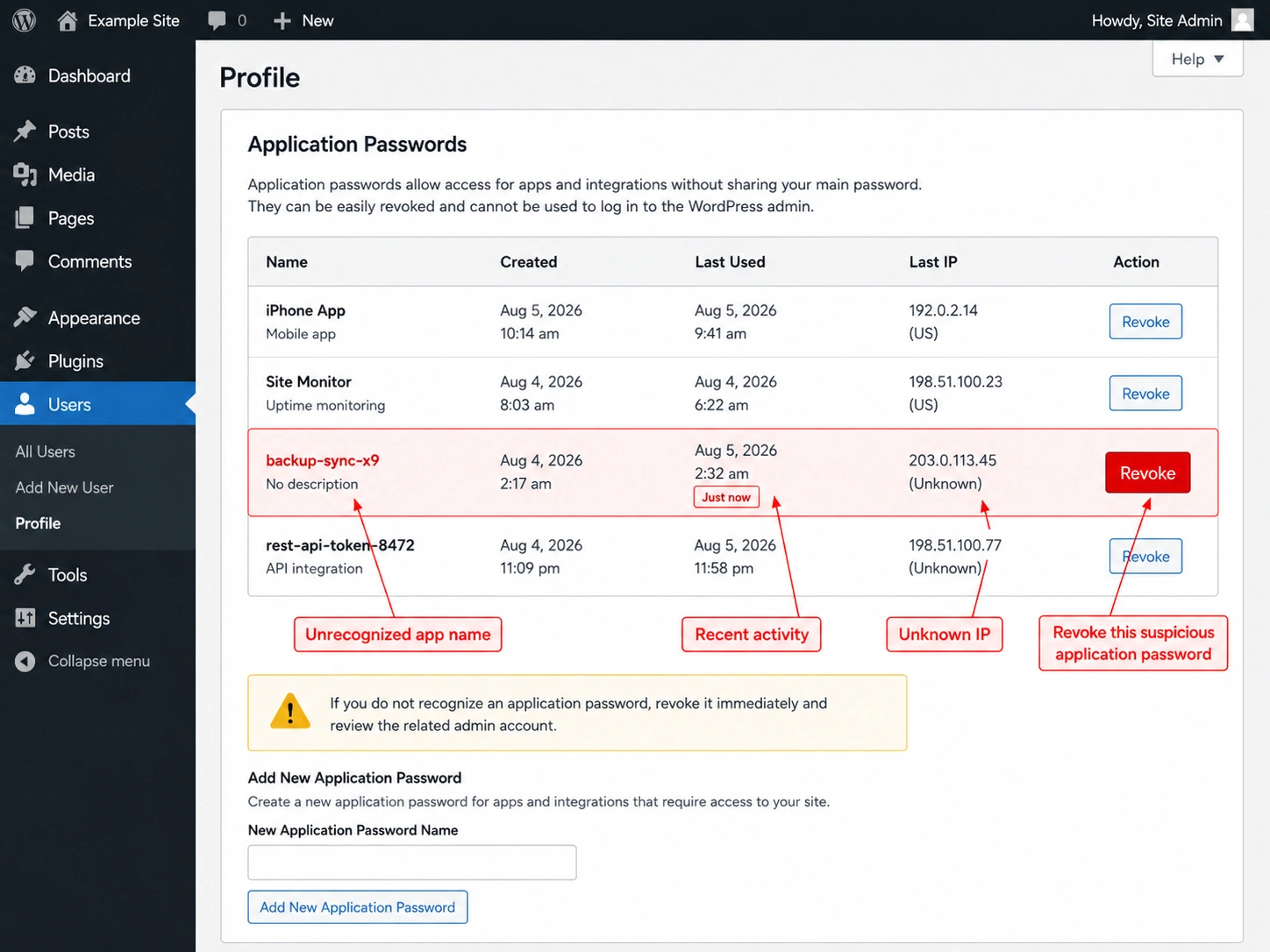
Open each administrator profile and review Application Passwords.
- Check the credential name.
- Match it to an approved tool.
- Review creation and last-used details.
- Check the last-used IP address when available.
- Revoke anything your team cannot identify or authorize.
3. Do Not Click Spam
Do not click links inside spam comments, injected pages, strange messages, or unknown administrator notes. Save the URL as plain text or capture a screenshot. A malicious link may open phishing, malware, tracking, redirect, or fake-login pages.
4. Turn On 2FA
Enable two-factor authentication for WordPress administrators, hosting, AWS, email, CDN, registrar, and password-manager accounts.
For the broader warning signs and possible causes we did not cover here, see our website security warning signs.
5. End Active Sessions
Refresh the WordPress authentication keys and salts in wp-config.php to force logins again. Terminate unknown SSH sessions, hosting sessions, API connections, plugin integrations, and devices.
Save the Evidence
- Record when you first noticed the attack and include your timezone.
- Capture screenshots of affected pages.
- Save unknown users, roles, and application-password details.
- Record spam keywords, domains, redirects, and foreign-language phrases.
- Note recent plugin, theme, server, and account changes.
- Record Search Console or hosting warnings.
- Document every recovery action.
WordPress also recommends documenting a compromise before cleanup in its official hacked-site recovery guidance.
Back Up Before Cleanup
Run the backup command from the server terminal, not from the WordPress editor, browser, or MariaDB prompt.
Connect to the Server
If you use AWS Lightsail, open your instance and choose Connect using SSH. Other hosts may provide a browser terminal, SSH credentials, or a hosting console.
Open your WordPress wp-config.php file and locate:
define('DB_NAME', 'your_database_name');
define('DB_USER', 'your_database_user');
define('DB_PASSWORD', 'your_database_password');

$table_prefix = 'wp_';
Write down the values for DB_NAME, DB_USER, and the table prefix. Keep the database password private.
Create the Database Export
mysqldump -u DATABASE_USER -p DATABASE_NAME > wordpress-backup.sqlReplace:
DATABASE_USERwith the value fromDB_USERDATABASE_NAMEwith the value fromDB_NAME
MariaDB will ask for the database password. Enter the value from DB_PASSWORD. The terminal may not show characters while you type. That is normal.
Confirm the Backup Worked
ls -lh wordpress-backup.sqlThe output should show the file name and a size greater than zero.
- The backup file exists
- The file size is greater than zero
- You saved a server snapshot or file backup
- You confirmed the correct database name and table prefix
- The command returns an access error
- The backup file is empty
- You cannot confirm the database details
- You are working on the wrong server or environment
We created:
- An AWS Lightsail snapshot
- A full copy of the website files
- A complete MariaDB export
- A copy of the affected page record
- Screenshots of suspicious accounts
- A list of spam keywords and domains
Find Spam in MariaDB
Before You Search
Collect exact indicators from the hacked page first:
- Casino or betting terms
- Unknown domains
- Foreign-language phrases
- Redirect URLs
- Spam brand names
- Suspicious HTML or script fragments
Start with one or two specific indicators. Very broad words may return legitimate content.
Step 1: Open MariaDB
sudo mariadbWhen MariaDB opens successfully, the prompt usually changes to something similar to:
MariaDB [(none)]>Step 2: Select the Database
Use the database name from DB_NAME in wp-config.php.
USE DATABASE_NAME;Replace DATABASE_NAME with the real database name. MariaDB should respond with:
Database changedDB_NAME.
Step 3: Confirm WordPress Tables
SHOW TABLES;Confirm that the list contains tables ending in:
_posts_postmeta_options_users_usermeta_comments
In wp-config.php, confirm the line:
$table_prefix = 'wp_';Your prefix may look different, such as abc_. Replace every wp_ in the examples with your actual prefix.
Step 4: Search for Spam
SELECT ID, post_title, post_type, post_status
FROM wp_posts
WHERE post_content LIKE '%spam-keyword%'
   OR post_content LIKE '%casino%'
   OR post_content LIKE '%plinko%';
Replace the example terms with indicators from your site. For example:
WHERE post_content LIKE '%unknown-domain.com%'
   OR post_content LIKE '%betting-brand%'
OR post_content LIKE '%casino%';| Column | What It Means |
|---|---|
| ID | The database record number |
| post_title | The WordPress page or post title |
| post_type | Page, post, revision, attachment, or cache record |
| post_status | Published, draft, trash, or inherited revision |
Step 5: Sort the Results
SELECT post_type, post_status, COUNT(*) AS total
FROM wp_posts
WHERE post_content LIKE '%spam-keyword%'
   OR post_content LIKE '%casino%'
   OR post_content LIKE '%plinko%'
GROUP BY post_type, post_status;
You may see:
page          publish
post          trash
revision      inherit
oembed_cache
A large number of infected revisions may mean WordPress repeatedly saved the compromised page.
Step 6: Identify the Homepage
In WordPress, open Settings → Reading and check the page selected under Your homepage displays.
You can also check the homepage ID in MariaDB:
SELECT option_name, option_value
FROM wp_options
WHERE option_name IN ('show_on_front', 'page_on_front');
If show_on_front equals page, the value in page_on_front is the homepage page ID.
Step 7: Find the Live Page
SELECT ID, post_title, post_name
FROM wp_posts
WHERE post_type = 'page'
  AND post_status = 'publish'
  AND (
      post_content LIKE '%spam-keyword%'
      OR post_content LIKE '%casino%'
      OR post_content LIKE '%plinko%'
  );
Match the returned title or ID with the homepage or affected page, then record it as:
POST_IDStep 8: Inspect Revisions
SELECT ID, post_date, post_title
FROM wp_posts
WHERE post_type = 'revision'
  AND post_parent = POST_ID
ORDER BY post_date DESC
LIMIT 20;
Then label revisions using the known spam terms:
SELECT ID, post_date,
CASE
    WHEN post_content LIKE '%spam-keyword%'
      OR post_content LIKE '%casino%'
      OR post_content LIKE '%plinko%'
    THEN 'INFECTED'
    ELSE 'NO KNOWN SPAM FOUND'
END AS revision_status
FROM wp_posts
WHERE post_type = 'revision'
  AND post_parent = POST_ID
ORDER BY post_date DESC;Step 9: Inspect a Candidate Revision
SELECT ID, post_date
FROM wp_posts
WHERE post_type = 'revision'
  AND post_parent = POST_ID
  AND post_content NOT LIKE '%spam-keyword%'
  AND post_content NOT LIKE '%casino%'
  AND post_content NOT LIKE '%plinko%'
ORDER BY post_date DESC
LIMIT 5;
Record the newest candidate as:
REVISION_IDInspect the first 1,000 characters:
SELECT LEFT(post_content, 1000)
FROM wp_posts
WHERE ID = REVISION_ID;
For a full inspection:
SELECT post_content
FROM wp_posts
WHERE ID = REVISION_ID;
Compare the revision with a clean backup, archive, original document, staging copy, or version-control record.
Step 10: Back Up the Page Record
CREATE TABLE wp_posts_backup_page AS
SELECT *
FROM wp_posts
WHERE ID = POST_ID;
Confirm the backup:
SELECT ID, post_title
FROM wp_posts_backup_page;
Use a unique backup table name when wp_posts_backup_page already exists.
Step 11: Restore the Clean Revision
UPDATE wp_posts AS page
JOIN wp_posts AS revision
  ON revision.ID = REVISION_ID
SET page.post_content = revision.post_content
WHERE page.ID = POST_ID;
MariaDB should report one changed row.
Step 12: Verify the Known Spam Is Gone
SELECT ID, post_title
FROM wp_posts
WHERE ID = POST_ID
  AND (
      post_content LIKE '%spam-keyword%'
      OR post_content LIKE '%casino%'
      OR post_content LIKE '%plinko%'
  );
If MariaDB returns no rows, the restored page no longer contains those known terms. This does not prove that the entire site is clean.
- Open it in a private browser window.
- Check the page source.
- Test desktop and mobile.
- Confirm that no redirect appears.
- Clear WordPress, server, CDN, and browser caches.
- Check again while logged out.
Step 13: Exit MariaDB
EXIT;This returns you to the normal SSH terminal.
Check Where Else It Hides
Restoring the page removes visible spam only from that record. Search other WordPress locations before you treat the site as clean.
Inspect Post Metadata
SELECT post_id, meta_key
FROM wp_postmeta
WHERE meta_value LIKE '%spam-keyword%';
Record the post_id and meta_key. Match the post_id with the related page before you edit anything.
Search WordPress Options
SELECT option_name
FROM wp_options
WHERE option_value LIKE '%spam-keyword%';
Record each returned option_name. WordPress options may contain widget data, theme settings, plugin settings, URLs, scheduled data, or cache values.
Review Spam Comments
SELECT comment_ID, comment_post_ID
FROM wp_comments
WHERE comment_content LIKE '%spam-keyword%';
Record the comment_ID, then review it in WordPress Dashboard → Comments. Do not open the submitted URL.
Expand the Search
Create a search list from the evidence:
- Every spam keyword
- Every unknown domain
- Every redirect destination
- Every foreign-language phrase
- Every suspicious brand
- Every encoded string
- Every unusual script fragment
Search relevant plugin tables when the infection involves a page builder, SEO plugin, cache plugin, redirect plugin, or custom content system.
- You verified the restored page
- You searched metadata, options, and comments
- You recorded suspicious results
- You preserved rollback copies
Why Deleting Users Failed
Malicious access or content may remain inside posts, pages, revisions, metadata, options, widgets, menus, comments, plugin tables, application passwords, active sessions, PHP files, cron jobs, scheduled tasks, caches, and server processes.
A Subscriber normally cannot edit published pages through standard permissions. The attacker may also have gained administrator access, changed a role, used an API credential, exploited a plugin, modified the database, compromised hosting, or installed a backdoor.
Finish the Recovery Checks
Restoring the clean revision fixed the visible page, but we did not stop there. We checked the areas that could bring the spam back.
Review Users Again
Check administrators, wp_users, wp_usermeta, active sessions, and application passwords one more time. Confirm that every remaining account and integration belongs to your team.
Replace WordPress Core
Replace WordPress core files with a clean official copy. Review .htaccess, index.php, wp-config.php, and active theme PHP files before you reuse anything from the compromised server.
Reinstall Plugins and Themes
Install fresh copies from the official repository or original vendor. Remove unused, abandoned, unknown, nulled, or pirated software.
Scan the Uploads Folder
Investigate unexpected executable files in uploads:
.php
.phtml
.phar
Record file paths and timestamps, create a backup, and compare suspicious files with known legitimate files before deleting them.
Inspect Scheduled Tasks
Review WordPress cron events, Ubuntu cron jobs, plugin schedules, AWS automation, server timers, and unknown background processes. A scheduled task may recreate users or restore deleted malware.
Update the Full Stack
After you restore the site and confirm compatibility, update WordPress, plugins, themes, PHP, MariaDB, Ubuntu, and server packages.
sudo apt update && sudo apt upgrade -yThis command updates Ubuntu packages. It does not update WordPress, plugins, or themes, and it does not remove malware.
Check Search Console
Look for unknown indexed URLs, gambling or foreign-language queries, security warnings, unexpected sitemaps, ownership changes, and sudden index growth. Request validation or reindexing only after the website stays clean.
Recovery at a Glance
| Phase | What You Do | Do Not Continue Until |
|---|---|---|
| 1. Secure Access | Check administrators, application passwords, 2FA, and active sessions. | You recognize every remaining account and integration. |
| 2. Preserve Evidence | Record the attack and create server, file, database, and page-record backups. | The backups exist and have usable file sizes. |
| 3. Restore Content | Find the infected page, inspect revisions, and restore one verified clean copy. | The update affects one row and known spam terms no longer appear. |
| 4. Check Persistence | Inspect metadata, options, comments, users, files, and scheduled tasks. | The site stays clean while logged out and after cache clearing. |
What Finally Worked
- We recorded the unknown administrator and application-password details.
- We revoked unauthorized access and ended active sessions.
- We created server, file, database, and page-record backups.
- We confirmed the database name and table prefix.
- We searched
wp_postsusing the spam terms visible on the page. - We identified the affected published page and its saved revisions.
- We manually verified a clean revision before restoring it.
- We confirmed that the update affected one row.
- We searched metadata, options, and comments for the same indicators.
- We reviewed users, files, plugins, and scheduled tasks before monitoring the site.
The key lesson from our recovery was simple: moving to a clean server did not help because the imported WordPress database still contained the spam.
We only stopped the visible issue after we found the infected records, verified a clean revision, restored the page, and checked the other places where the same content or access could remain.
For hands-on learning across cloud, cybersecurity, AI, and professional certifications, explore our Mockcertified practice tests.
WordPress Recovery FAQs
Why did the spam return after moving servers?
The old database still contained infected page content and revisions. Importing it brought the spam into the clean server.
What should I check first?
Check every administrator account, review application passwords, record suspicious details, revoke unknown access, enable 2FA, and end active sessions.
Should I delete suspicious records immediately?
No. Record the IDs, usernames, timestamps, domains, and affected URLs first. Create backups before you delete or update anything.
How do I know which database to use?
Open wp-config.php and use the values from DB_NAME, DB_USER, and $table_prefix. Stop if the selected database does not contain the expected WordPress tables.
Does “no known spam found” mean a revision is clean?
No. It only means the revision does not contain the terms you searched. Inspect the content and compare it with a trusted backup, archive, or original copy.
What if the restore query changes more than one row?
Stop immediately. Recheck the database, table prefix, POST_ID, and REVISION_ID.
What if the spam still appears after restoration?
Clear WordPress, server, CDN, and browser caches. Then check metadata, options, comments, plugin tables, files, scheduled tasks, and unknown sessions.
When should I ask a specialist for help?
Stop when you cannot confirm the correct database, cannot verify a clean revision, see multiple affected pages, find suspicious PHP files, or continue seeing redirects after restoration.



