
You launch Meta ads for your Shopify store, orders start coming in, and then something does not add up.
Meta reports fewer purchases than Shopify. A product shows the wrong price. AddToCart appears in Events Manager, but Purchase does not. Or your catalog looks fine in Shopify and incomplete in Meta.
Where should you start? Check the connection between Shopify and Meta before changing the campaign. Most problems come from the wrong business asset, a catalog sync issue, missing events, duplicate tracking, or a data-sharing setting that is not working as expected.
You’ll work through the setup step by step, see what can go wrong, and know exactly where to look when Meta and Shopify stop matching.
Connect the Right Meta Account
Start in Shopify. Facebook & Instagram by Meta is the connection that ties your store to Meta’s business tools.
The first goal is simple: make sure Shopify is connected to the Meta business, Page, Instagram account, and ad account you actually intend to use.
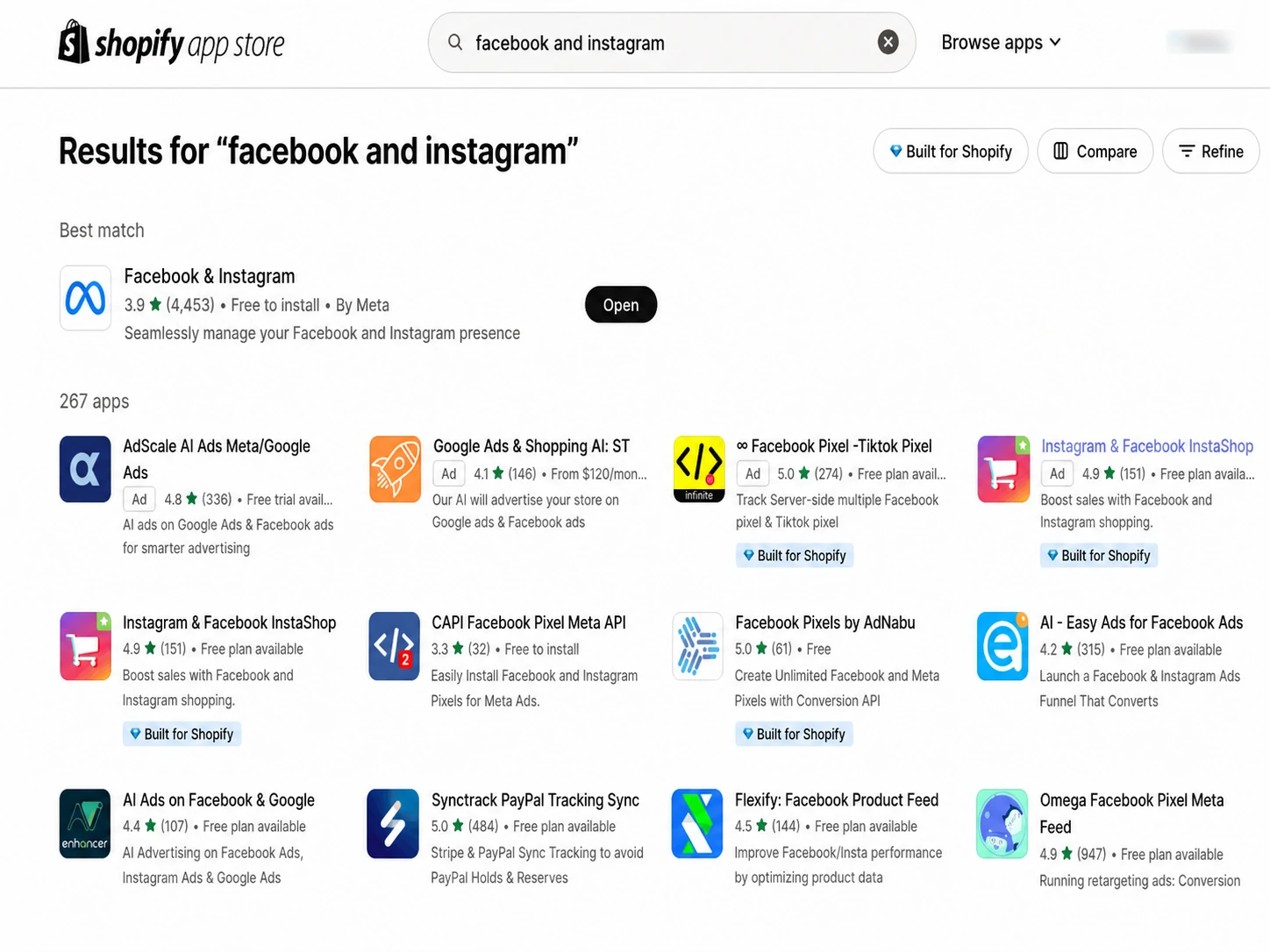
Check the Connection
- Open your Shopify admin.
- Open Facebook & Instagram under Sales channels.
- Confirm the Meta business account.
- Confirm the Facebook Page.
- Confirm the Instagram account where applicable.
- Confirm the Meta ad account you plan to advertise from.
Find Your Meta Commerce Assets
Once Shopify is connected, open Meta’s commerce tools and make sure the catalog you expect is actually there.
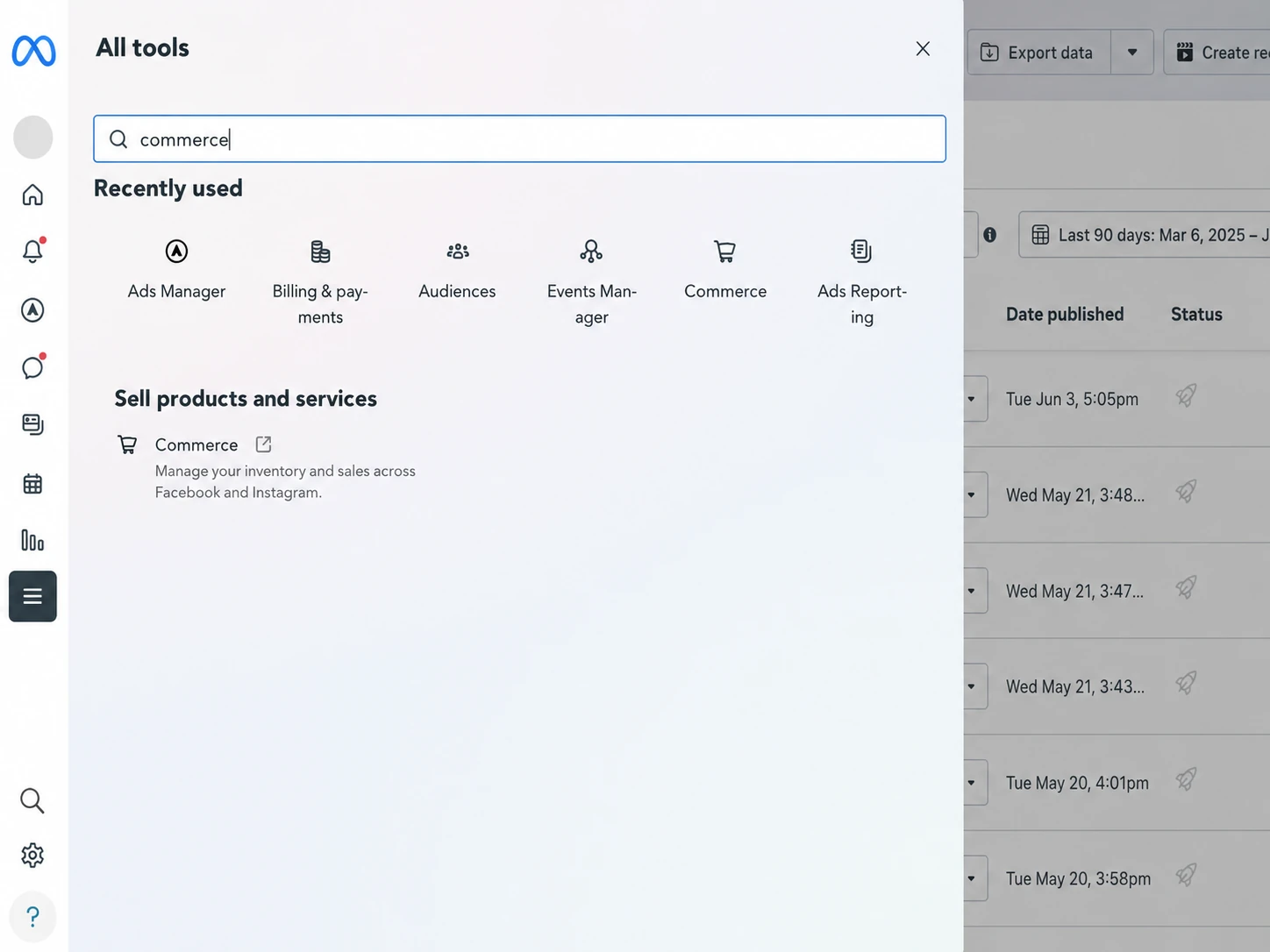
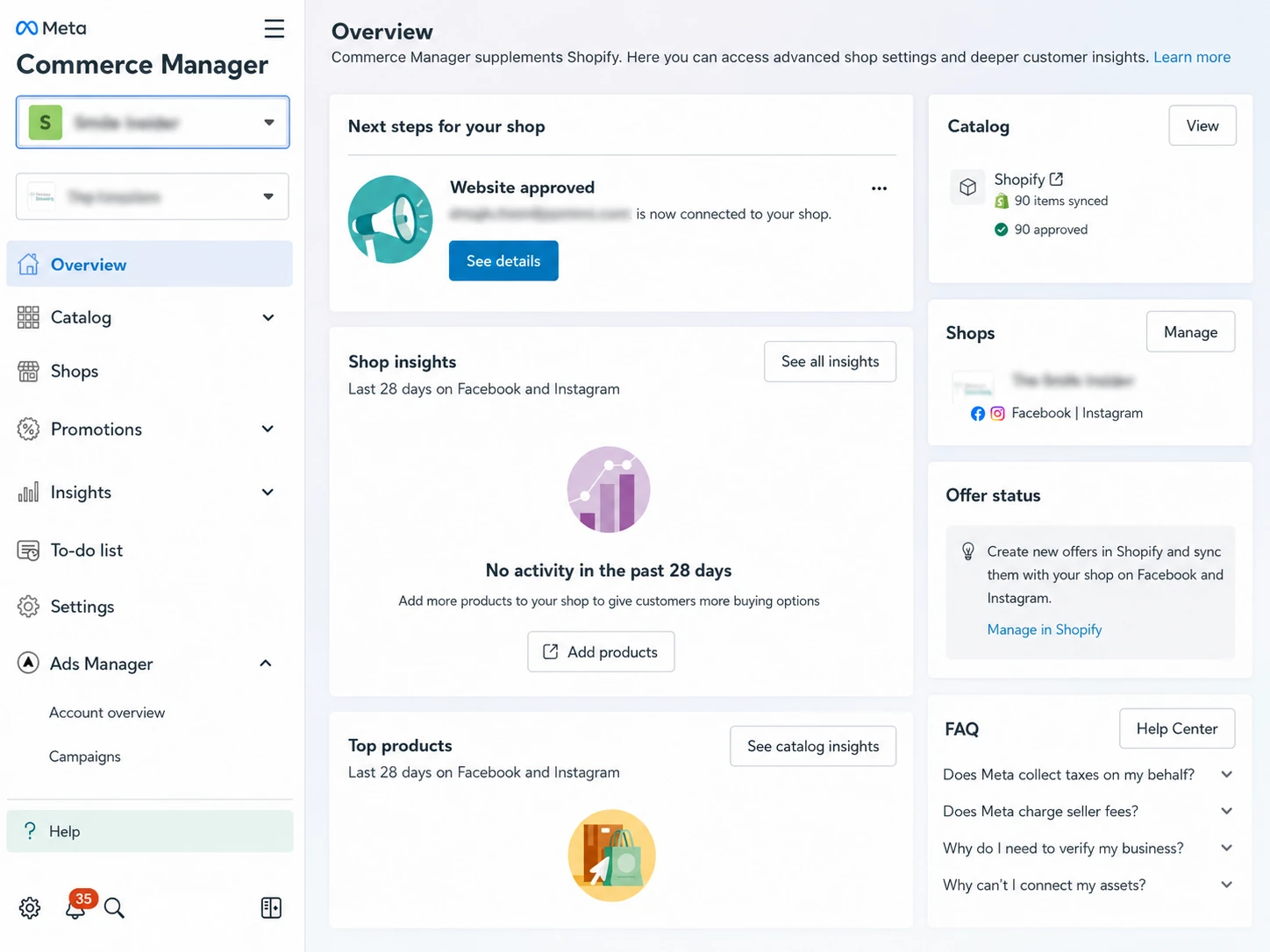
Is the Catalog Wrong?
If Meta is showing the wrong price, an old product, a broken URL, or missing inventory, do not start by rebuilding the campaign. Check the catalog first.
Compare One Real Product
- Open the product in Shopify.
- Open the same product in Meta Commerce Manager.
- Compare the title.
- Compare the price and currency.
- Compare the image.
- Open the product URL from Meta.
- Check whether availability matches the Shopify store.
If a product URL works for you but crawlers or platforms struggle to reach it, our Google crawl troubleshooting help shows how to check status codes, redirects, rendering, and blocked resources.
The Pixel Is Only Part of Tracking
Older Shopify tutorials often stop at “install the Meta Pixel.” That is no longer the whole setup.
Shopify currently lets you choose a customer data-sharing level for Facebook & Instagram by Meta. Depending on the level, Meta can receive browser events through the Pixel and supported server-side events through Conversions API.
Uses the Meta Pixel for browser-based activity.
Uses the Meta Pixel plus Conversions API for supported server-side sharing.
Uses Pixel, Conversions API, and additional supported Meta advertising technology available through Shopify.
You can compare the current options in Shopify’s Meta customer data-sharing documentation.
Browser vs Server Events
It helps to know why Meta can receive the same customer journey in more than one way.
| Browser Event | The Meta Pixel records supported activity that happens in the shopper’s browser. |
| Server Event | Conversions API can send supported event data from Shopify to Meta without relying only on the browser. |
| Why It Matters | Browser restrictions, consent choices, and technical failures can affect what each system receives. |
Test Events, Not Just the Connection
Seeing “connected” in Shopify does not prove that your purchase tracking works.
The easiest mistake to make is checking PageView, seeing activity, and assuming the rest of the funnel is fine.
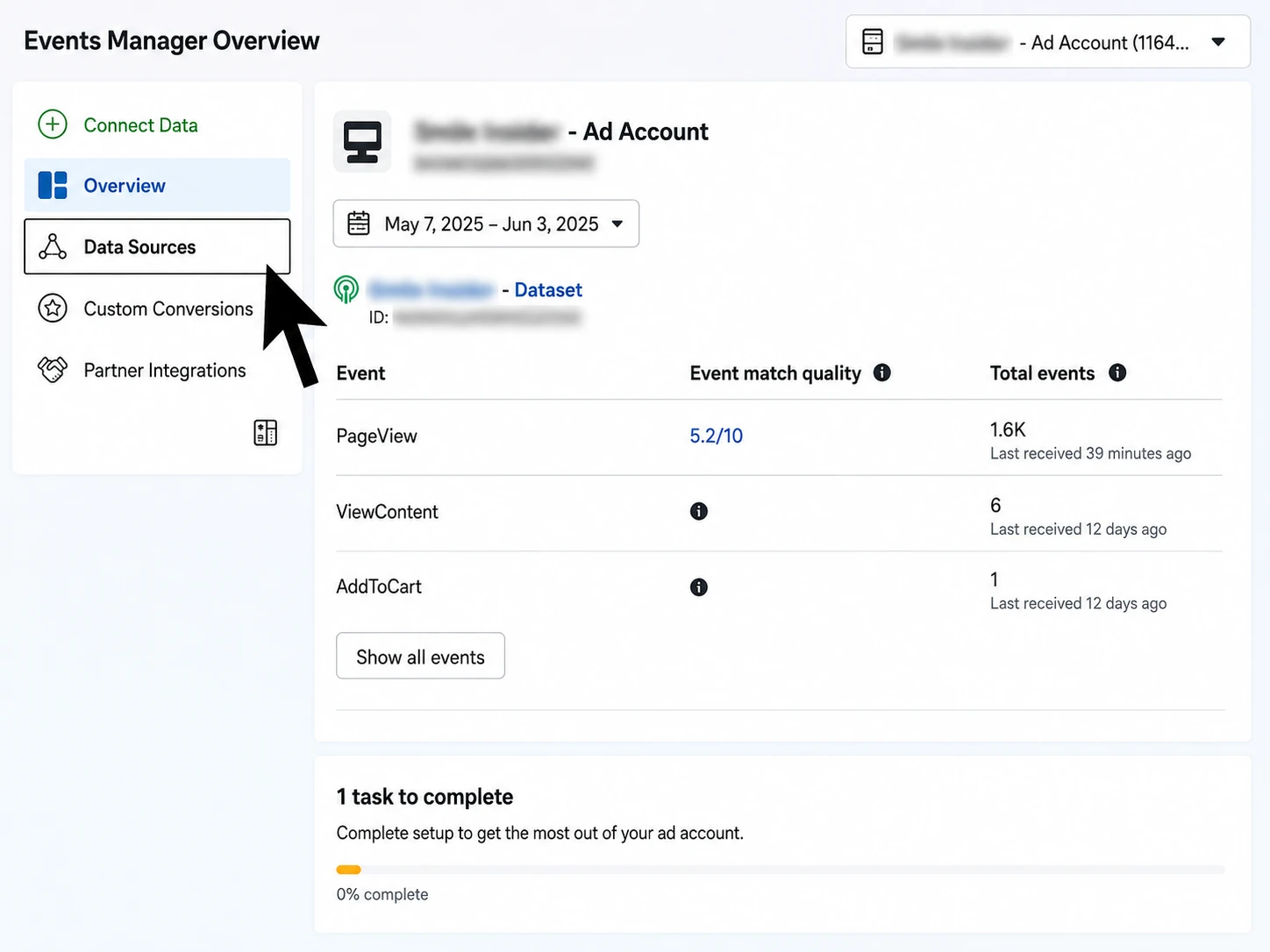
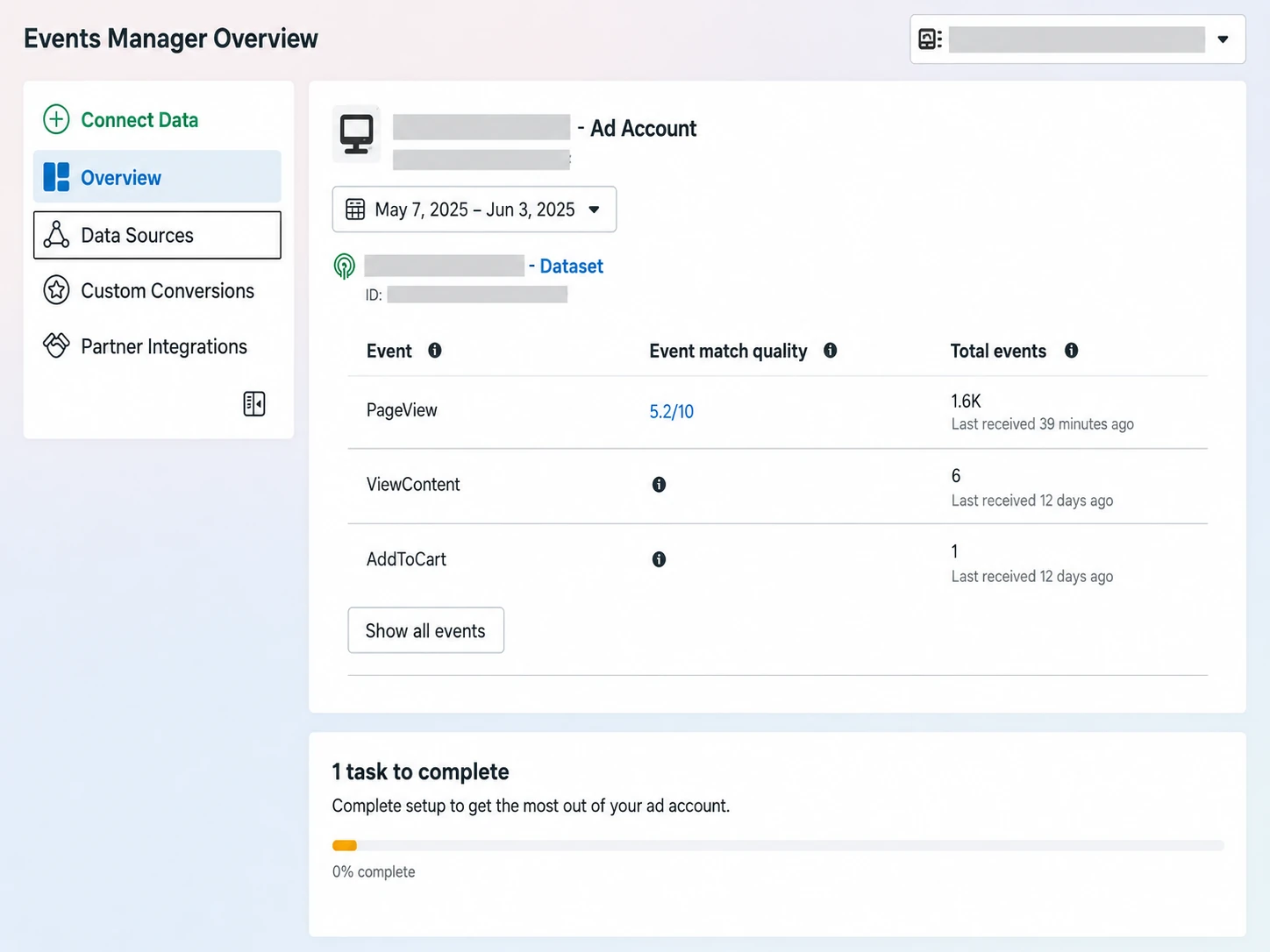
Use Shopify’s Pixel Test Too
Meta Events Manager tells you what Meta received. Shopify can help you check what happens on the store side.
Shopify explains app-pixel testing in its app pixel documentation.
Meta Says Zero Purchases. Shopify Says Five.
This is where the setup starts to feel broken. But different numbers do not automatically mean the Pixel failed.
Review Privacy Before Sharing More
Enhanced or Maximum sharing may improve the amount of usable event data, but that does not mean every store should simply choose the highest setting.
Before You Change It
- Review your Shopify privacy settings.
- Make sure your privacy policy reflects your actual marketing-data practices.
- Check consent requirements in the markets where you sell.
- Understand how your consent tool affects marketing events.
- Choose the sharing level that fits your business and compliance requirements.
Make Sure the Domain Matches
Your catalog links, store connection, and commerce settings should point to the domain shoppers actually use.
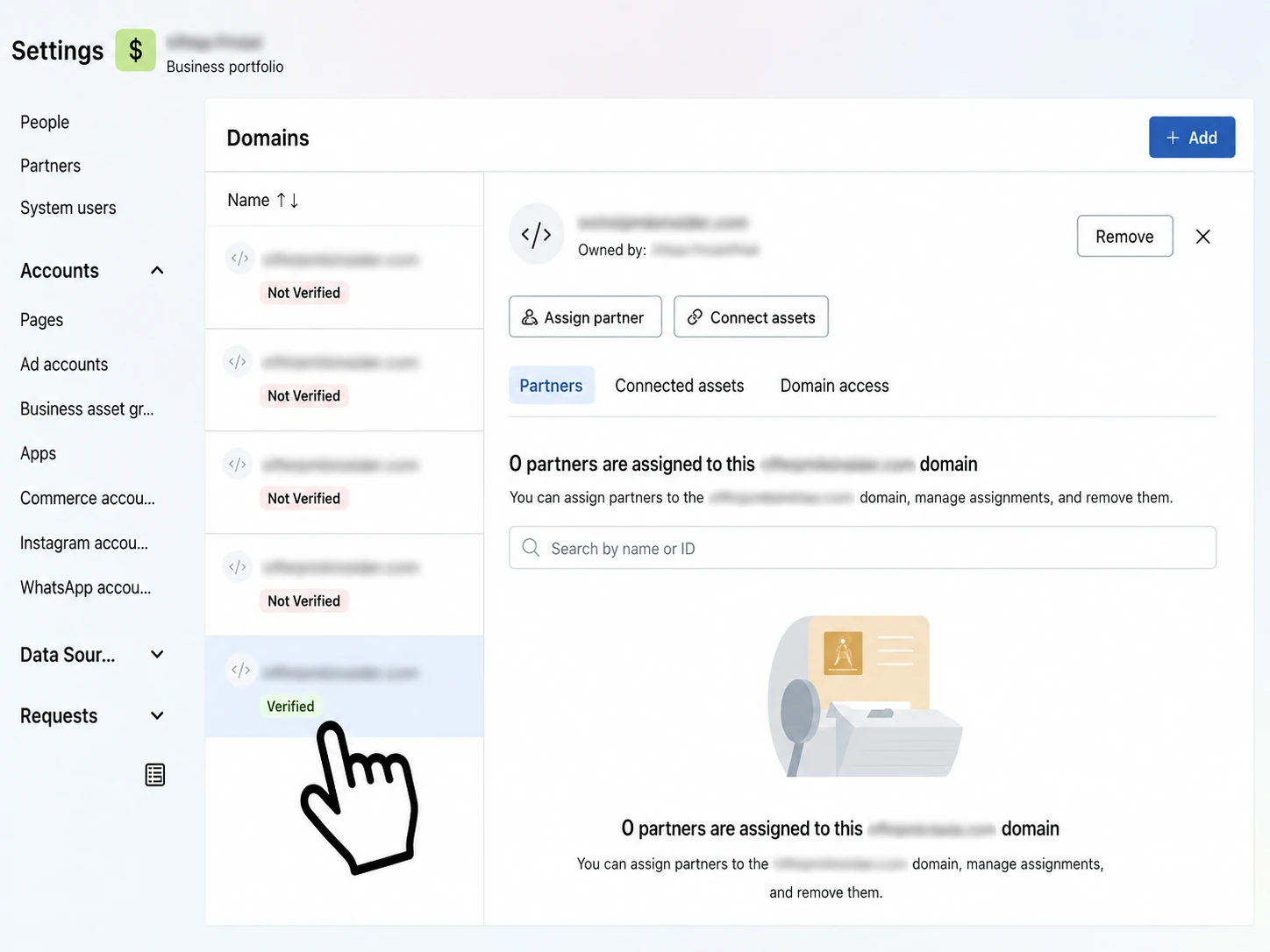
Check the Domain
- Use the real customer-facing Shopify domain or connected custom domain.
- Make sure catalog product links use that domain consistently.
- Check whether Meta is requesting verification.
- If Meta gives you a DNS TXT record, add it through your DNS provider.
What Changed Since Older Setups
Some older Meta + Shopify tutorials describe Facebook or Instagram checkout as though the entire purchase always finishes inside Meta.
For Shopify’s standard Facebook and Instagram sales-channel flow, Shopify says shoppers are redirected to the Shopify online store to complete checkout. Shopify also documents a change for new orders from August 26, 2025, when Meta stopped acting as the marketplace tax facilitator for this standard flow.
If you are following an older setup article, compare it with Shopify’s current Facebook and Instagram by Meta setup documentation before assuming the checkout steps are still the same.
Now Review the Campaign
Only after the store connection, catalog, and events look healthy should you start blaming campaign settings.
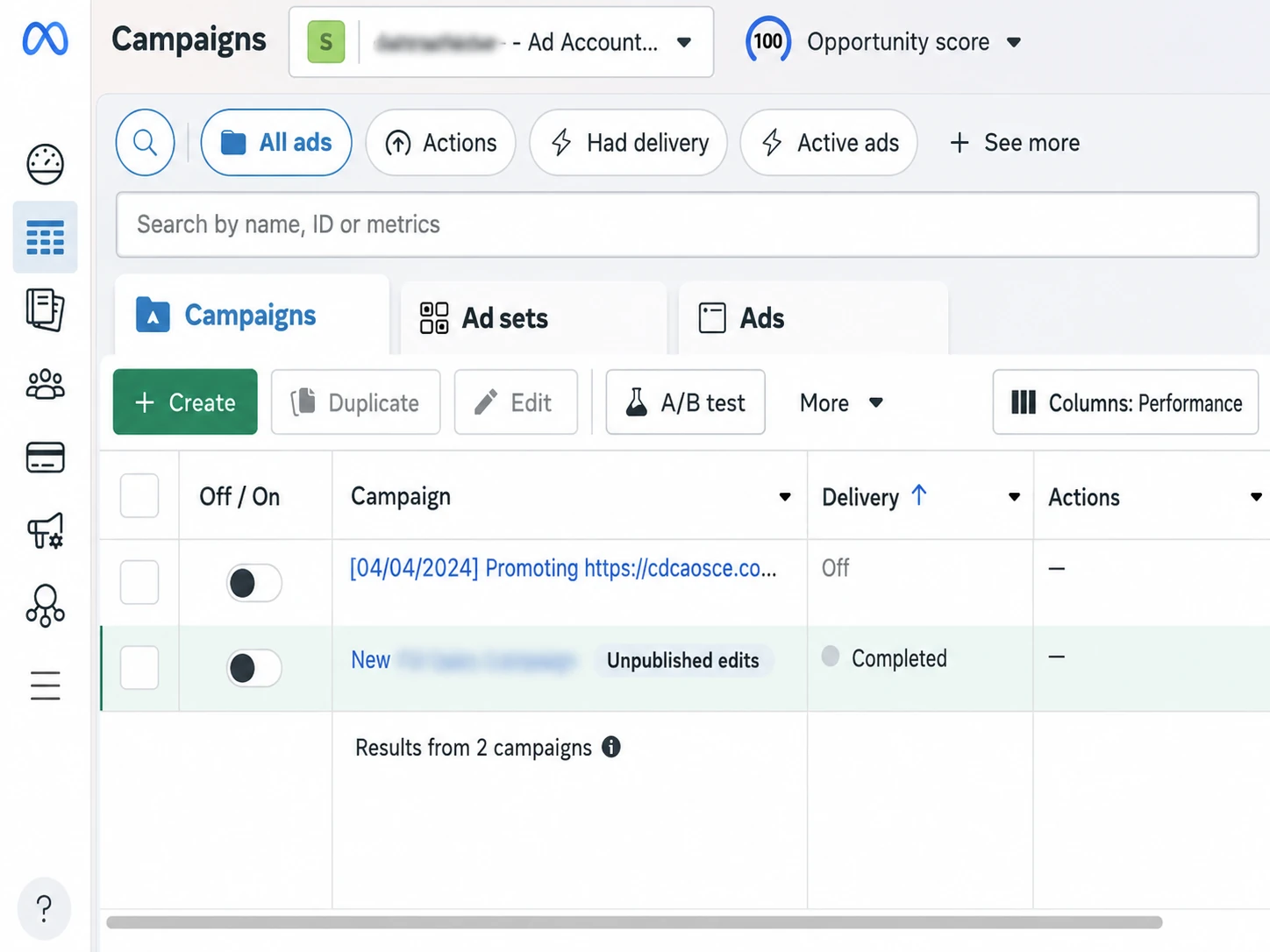
Before You Increase Spend
- Confirm the campaign uses the correct ad account.
- Confirm the correct catalog is selected where applicable.
- Confirm the correct website data source.
- Open the landing-page URLs.
- Check product availability.
- Confirm Purchase is being received.
- Review budget and geography.
- Check your URL tracking parameters.
Where Advantage+ Fits
You will also see more automation in current Meta campaign setups than in older tutorials.
Advantage+ can automate more of the campaign’s audience and delivery decisions. That can simplify campaign management, but it does not fix bad tracking or a broken catalog underneath it.
What About Shopify Campaign Autopilot?
Shopify also has a newer Campaign Autopilot feature that can recommend and create Meta Advantage+ campaigns for eligible merchants.
As of August 2026, Shopify describes it as an early-access feature, so you may not see it in your store.
If it is available to you, review Shopify’s current Campaign Autopilot documentation before relying on older Ads Manager tutorials.
Changed Your Theme or Apps?
If tracking worked last month and suddenly stopped, ask what changed on the Shopify side.
A theme update, new app, checkout change, consent tool, catalog change, or marketing integration can affect what gets sent to Meta.
This is why tracking should be part of your release checks. Our DevOps for ecommerce websites article explains why testing changes before and after deployment matters.
A 10-Minute Meta Shopify Check
Confirm the business and ad account.
Compare one product with Shopify.
Check Standard, Enhanced, or Maximum.
Check the Meta app pixel.
Look for events beyond PageView.
Confirm Purchase reaches Meta.
Confirm the campaign uses the correct data source and catalog.
Before You Spend More
- The right Meta business is connected.
- The correct ad account has access.
- The catalog contains the expected products.
- Prices, URLs, currency, and inventory match Shopify.
- The intended data-sharing level is selected.
- You do not have duplicate Pixel implementations.
- Key customer events are arriving.
- Purchase has been tested.
- Privacy and consent settings have been reviewed.
- The customer-facing domain is correct.
- The campaign uses the right catalog and data source.
- Tracking has been retested after recent store changes.
If Meta and Shopify do not agree, do not immediately rebuild the campaign.
Start with the connection. Then check the catalog. Then check tracking and real customer events. Only after those pieces are working should you troubleshoot campaign delivery.
The setup has become more sophisticated than the old “paste a Pixel into Shopify” workflow, but the troubleshooting principle is still simple: find where the customer journey stops being recorded correctly, fix that point, and test again.
Meta Shopify Setup FAQ
Do I Still Need a Meta Pixel on Shopify?
Yes. The Meta Pixel remains part of Shopify’s Meta integration. Depending on your data-sharing level, Shopify can also use Conversions API alongside browser-based Pixel events.
What Is Conversions API?
Conversions API lets supported event data move from Shopify to Meta server-to-server instead of relying only on browser tracking. It works alongside the Meta Pixel in supported Shopify data-sharing setups.
Which Shopify Meta Data-Sharing Level Should I Choose?
Standard, Enhanced, and Maximum use different levels of customer-data sharing. The right choice depends on your advertising needs, consent setup, privacy practices, and applicable legal requirements.
Why Does Meta Show Fewer Purchases Than Shopify?
Possible causes include missing Purchase events, customer consent, attribution differences, the wrong data source, duplicate tracking, or a campaign connected to a different Pixel or account.
How Do I Test Meta Tracking on Shopify?
Use Shopify’s Customer events tools and Pixel Helper where supported, then compare the events with Meta Events Manager. Test the complete funnel through Purchase rather than checking PageView alone.
Should I Add Meta Pixel Code Manually?
Usually not if Shopify’s official Facebook & Instagram integration already handles the Pixel. A second implementation can create duplicate events. Only use a separate setup when you have a specific technical reason and know how the implementations interact.
Does Domain Verification Fix Meta Tracking?
No. Domain verification can matter for certain Meta commerce features, but it will not fix a missing Purchase event, a broken catalog sync, duplicate tracking, or the wrong ad account.
What Is Shopify Campaign Autopilot?
Campaign Autopilot is Shopify’s newer marketing automation feature that can recommend and create Meta Advantage+ campaigns for eligible merchants. Shopify currently describes it as an early-access feature.



